How to correctly process audio from KTSL2STBIN archives
Good evening everyone.
Today I will show you the correct method for compressing KTSL2STBIN audio archives. They are commonly seen in Koei Tecmo games like Atelier Ryza and Atelier Sophie.
KTSL2STBIN archives contain Ogg Vorbis audio which we can compress with Oggre library by ProFrager. However, in their stock state, the KTSL2STBIN archives do not contain normal ogg audio, similar to that of FMOD or WWise.
The process to compress them correctly is as follows:
Setup:
- Download the KVS Toolbox uploaded here. This contains all the required files for the process.
Step 1: Extracting the archive
- These archives contain individual KVS files. These are the audio files. We need to unpack them from the KTSL2STBIN archive.
- Open command prompt and run:
Code:
kvs_extract <your archive>

Example:

kvs_extract BGM.ktsl2stbin
- This will produce a folder called "out" containing several KVS files.
Step 2: Converting to Ogg Vorbis
- Open kvs2ogg.exe.
- Go to "Tool(T)" tab and click "kvs Search(F)":
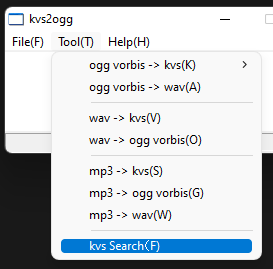
- In the window that appears, select "Browse.." and choose the "out" folder you generated in Step 1.
- Click "Search"
- Once the full list of KVS files has loaded, right click anywhere in the table and go to "All Convert(B)" then from that menu, click "Convert(C)"
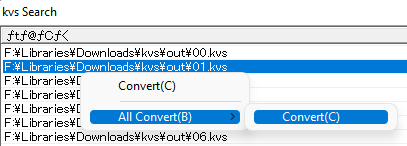
- A file explorer window will open. You have to do nothing here, just click "Save" in the bottom right corner of that window.
- The KVS data will be converted to OGG. Once the program is done, you will get a message box with some nonsense text. Don't panic, the tool is Japanese so because I don't have JP language pack installed in my Windows, the text does not display correctly.
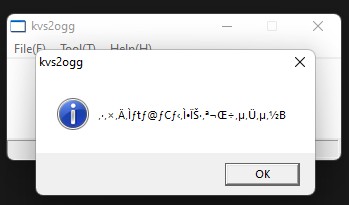
- Close KVS2OGG.
- Go into the "out" folder and delete all of the KVS files. They are no longer needed.
Step 3: Bincat + Patch
- Still inside the "out" folder, open command line and run:
Code:
bincat *.ogg ..\<your archive name>.<your temp extension>

Example:

bincat *.ogg ..\BGM.KTTMP (Koei Tecmo Temp)
- After bincat has finished, close command line and delete the out folder. It's no longer needed.
- Now, open command line in the same folder that contains your bincat output and your original KTSL2STBIN archive.
- Run:
Code:
hdiffz-x64 -c-lzma2-9 <bincat output> <original KTSL2STBIN archive> <diff file>

Example:

hdiffz-x64 -c-lzma2-9 BGM.KTTMP BGM.KTSL2STBIN BGM.KTDiff
- All done!
This is the end of the process. Now, we should have 3 files:
- The KTTMP file.
- The original KTSL2STBIN file.
- The KTDiff Patch.
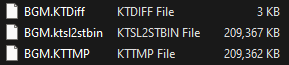
You can now delete the KTSL2STBIN file.
The KTTMP file you can compress with oggre.
The KTDiff file you must retain. After decompression/installation of your final compressed archive, you must run hpatchz (included in KVS Toolbox) to restore the original KTSL2STBIN file. Fortunately, the patches are very small in size so including them in your conversion will have extremely minimal impact on final size.
Thanks for reading!